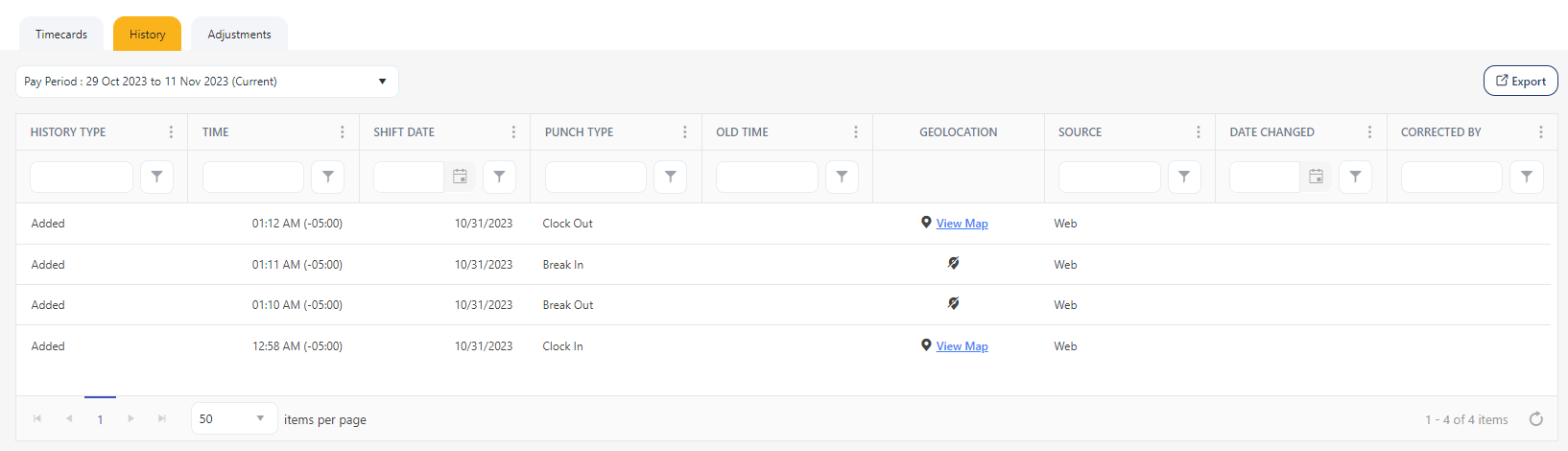
Capture Punch Geo Location - Web is a setting in the application that allows the recording of the geographical location when a punch occurs. When activated, the Capture Punch Geo Location feature monitors the location of each punch. The punch location is accessible through the History tab on the timecard screen. Specifically for mobile usage, there are different settings for capturing punch geo location. Additionally, there is an option to make this configuration either mandatory or optional.
 ” icon on the top right corner of the application.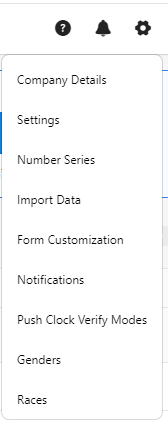


Access the web application. Try to Clock In.
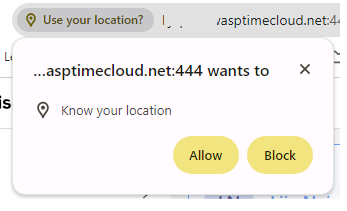
A popup message will appear with the message "Know your location? ". Click Allow or Block.
Note:
 ) indicating denied location access. The screenshot below illustrates how Google Chrome displays the geolocation icon and indicates where location access is provided. Depending on your browser, we recommend referring to or searching for steps on how to grant permission to add location data.

After the location access is granted and when you clock in or out, location information becomes accessible. To view the location information, go to the "Timecards > History tab" or "View Timecards > History tab" and click on the View Map link.