Change Password
To change your password, please follow these steps:
- Log in to your application.
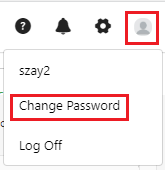
- Click on the Profile icon in the top right corner of the screen.
- Click on Change Password.
- Enter your current password (required).
- Enter your new password on the new password and confirm password field (required). Ensure that the password meets the password requirement criteria.
- Check the show password checkbox to view the password. By default, the password is hidden.
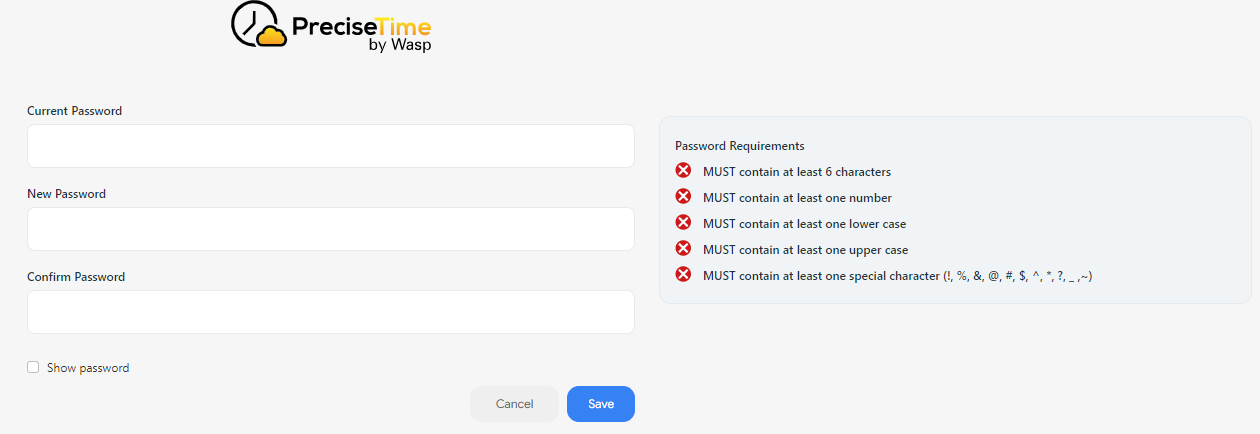
- Click Save. Click Cancel to navigate to the login screen.
👉 Refer to Settings > Password Configuration to configure password requirements.
