Change Tracking Configuration
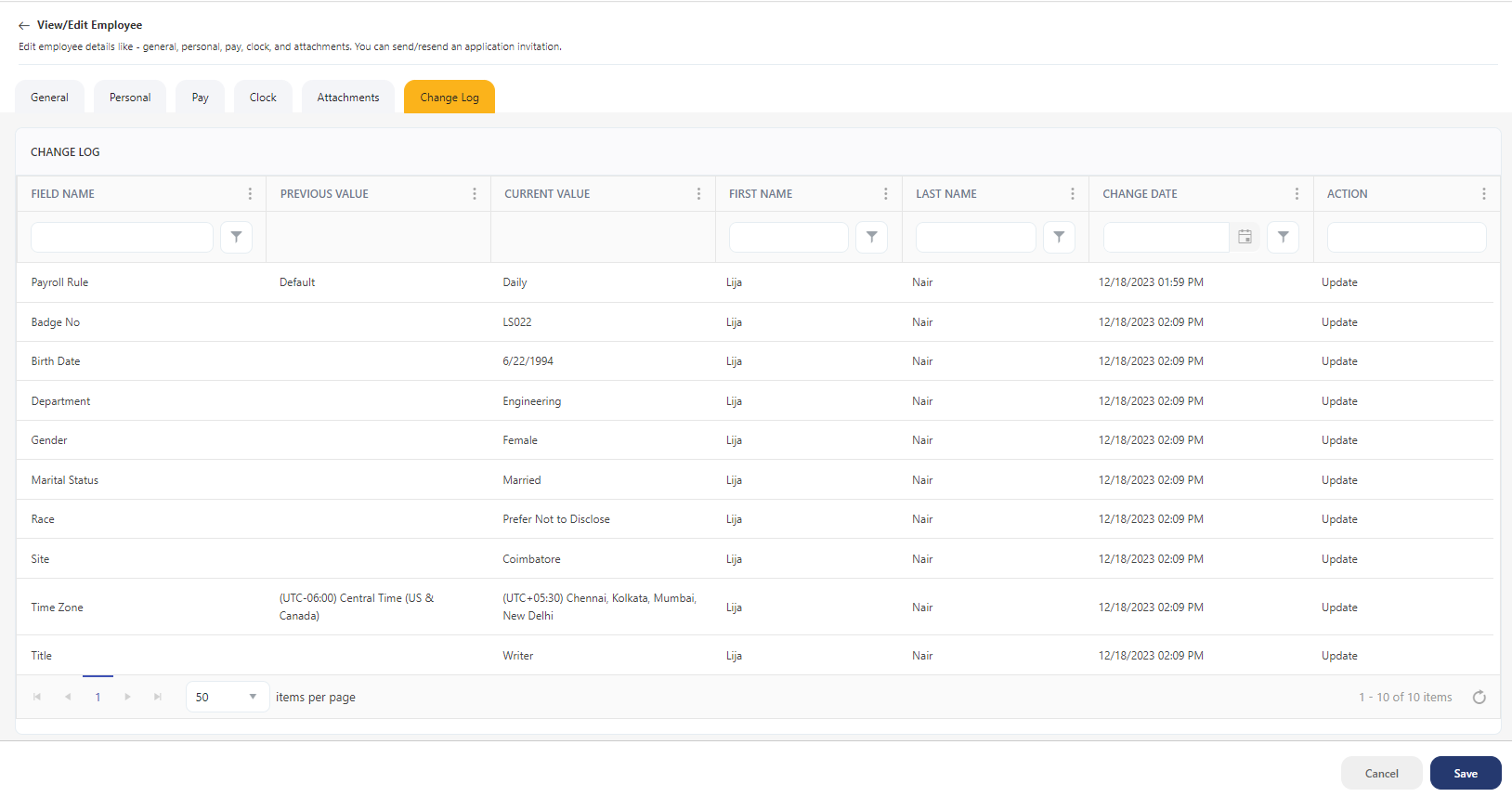
The change-tracking configuration is a setting that enables the Change Log feature on the Employee screen, which will capture the modifications made on the employee screen. It captures details such as the field, previous value, new value, the individual making the change, the timestamp of the modification, and the action performed.
Note: The logged-in user should have Employee - View Change History permission too to view the Change Log feature.
- Click on the gear “
 ” icon on the top right corner of the application.
- Click Settings.
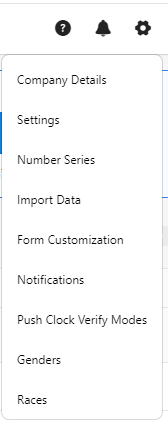
- Click on Change Tracking Configuration.
- You can configure the following in the settings.
- Enable Employee Change Tracking - Enables the Change Log feature on the Employee screen. This feature captures the changes on the employee screen.

- Keep Change Log duration days - Enter the number of days to keep the change log. The range is 7 days (minimum) and 36525 days (100 years, maximum).

- Click Save.
- To verify, enable the employee change tracking setting and save. Access the Edit Employee screen and make some modifications. Click on the Change Log tab on the Edit Employee screen to view all the modifications. Refer to the topic Change Log for more details.