How PreciseTime Enforces Employee Count License Restrictions?
PreciseTime enforces license restrictions based on employee count. To get more insights on this topic, consider the following example:
- Consider you have a license for "30 Users".
- If you import more employees than the number of available licenses, the menus will disappear for the logged-in user and the message will appear indicating that the "License limit exceeded. Purchase more licenses or inactivate or delete some employees to reduce the number of active employees to XXX or fewer." where XXX indicates your license count.
Note: The employees with "Active/Leave" status will consume a license.
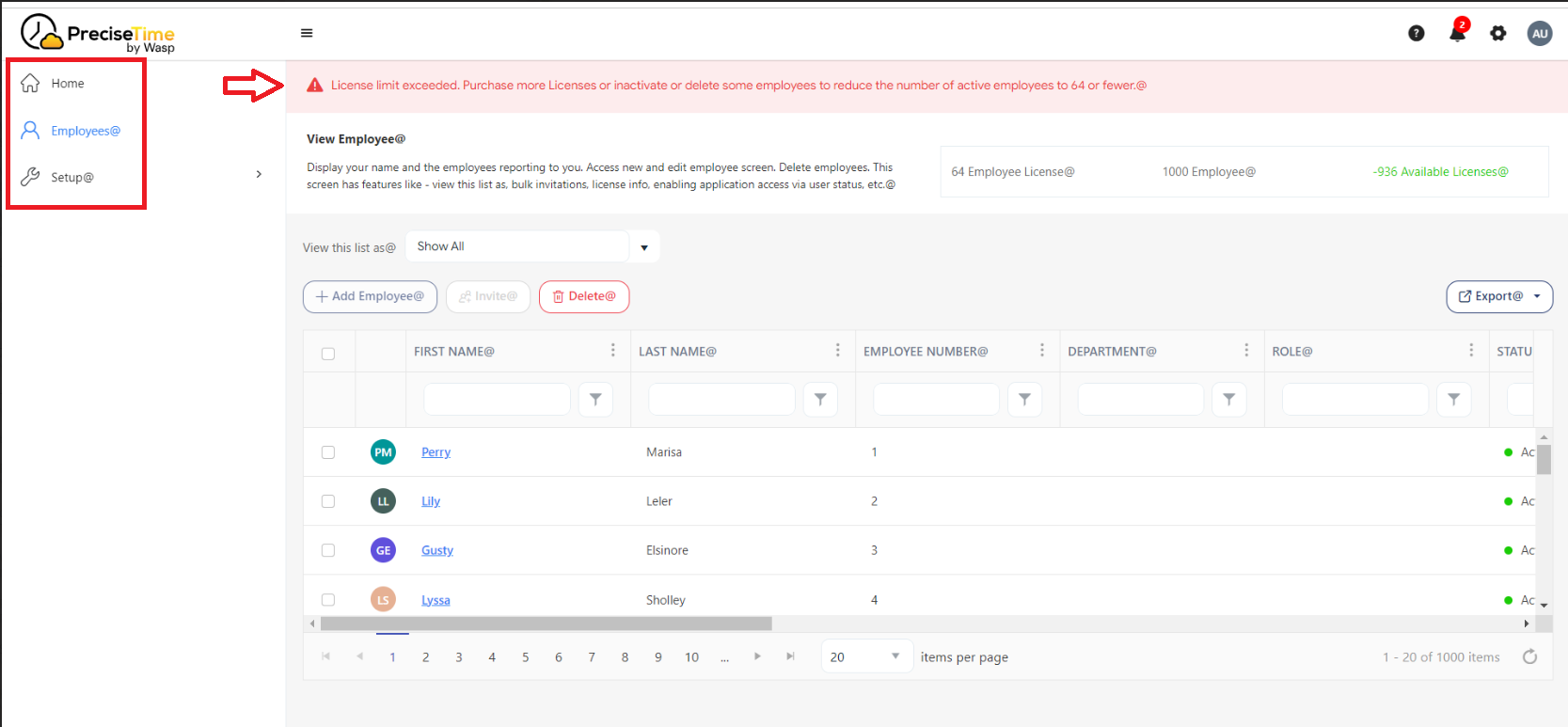
- To resolve this, do one of the following:
- You can edit enough employees to make them inactive. Refer to the topic - Add Employee / Edit Employee screen.
- Alternatively, deactivate a sufficient number of employees in bulk using an import. Refer to the topic Import Data.
- You can also delete employees whose records you do not want in the database.
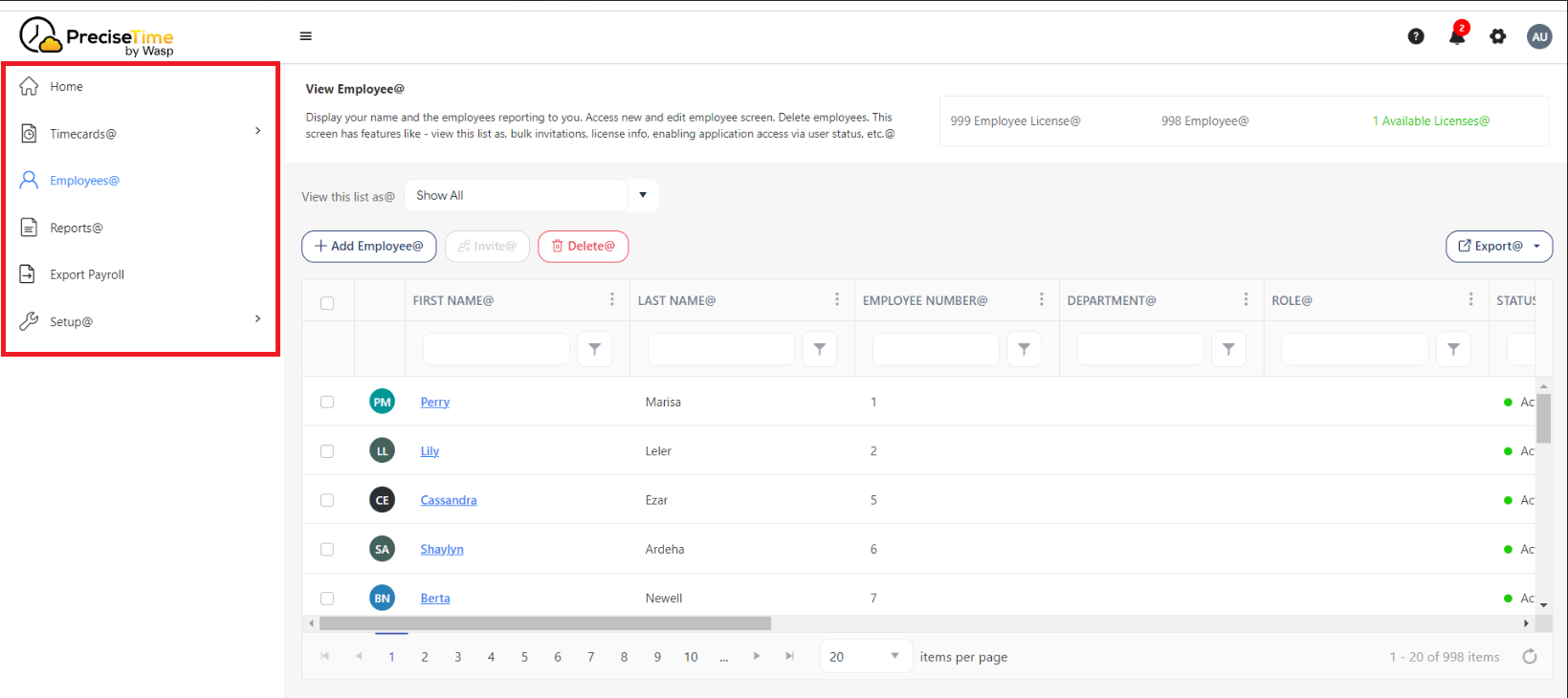
Note: When you deactivate or delete an employee in any of the mentioned scenarios, the values in Employee Licenses, Employees, and Available Licenses on the View Employee screen will be updated accordingly.
- After making the necessary changes, log in again, and you will see that the message disappeared and all the menus have reappeared, indicating the successful resolution of the issue.