Export Payroll
Payroll Export calculates and writes your employees' pay period hours worked to a file in the selected format.
Prerequisites for Payroll Export
- Choose the payroll export format on the Payroll Export screen.
- Ensure that the option "Never Export Payroll" is unchecked on the Employee New/Edit screen. If the checkbox is checked in the timecard settings, the employee will not be listed in the Choose Employee section.
- The permission assigned to export payroll is "Pay Period Settings." The employees with the Pay Period Settings permission will be able to access Pay Period Settings, the payroll export feature, and the export payroll screen.
Export Employee Payroll
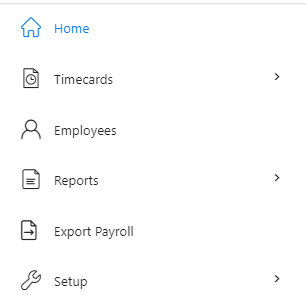
- Click on Export Payroll.
- Payroll Details to Export - Select the Pay Period.
Note:
- The options in the dropdown will list actual, and valid pay periods with punches associated with them. However, if there is only one pay period, the dropdown will show that single pay period as the only option for selection.
- If there are actual and valid previous pay periods, then you can view up to 12 previous pay periods.
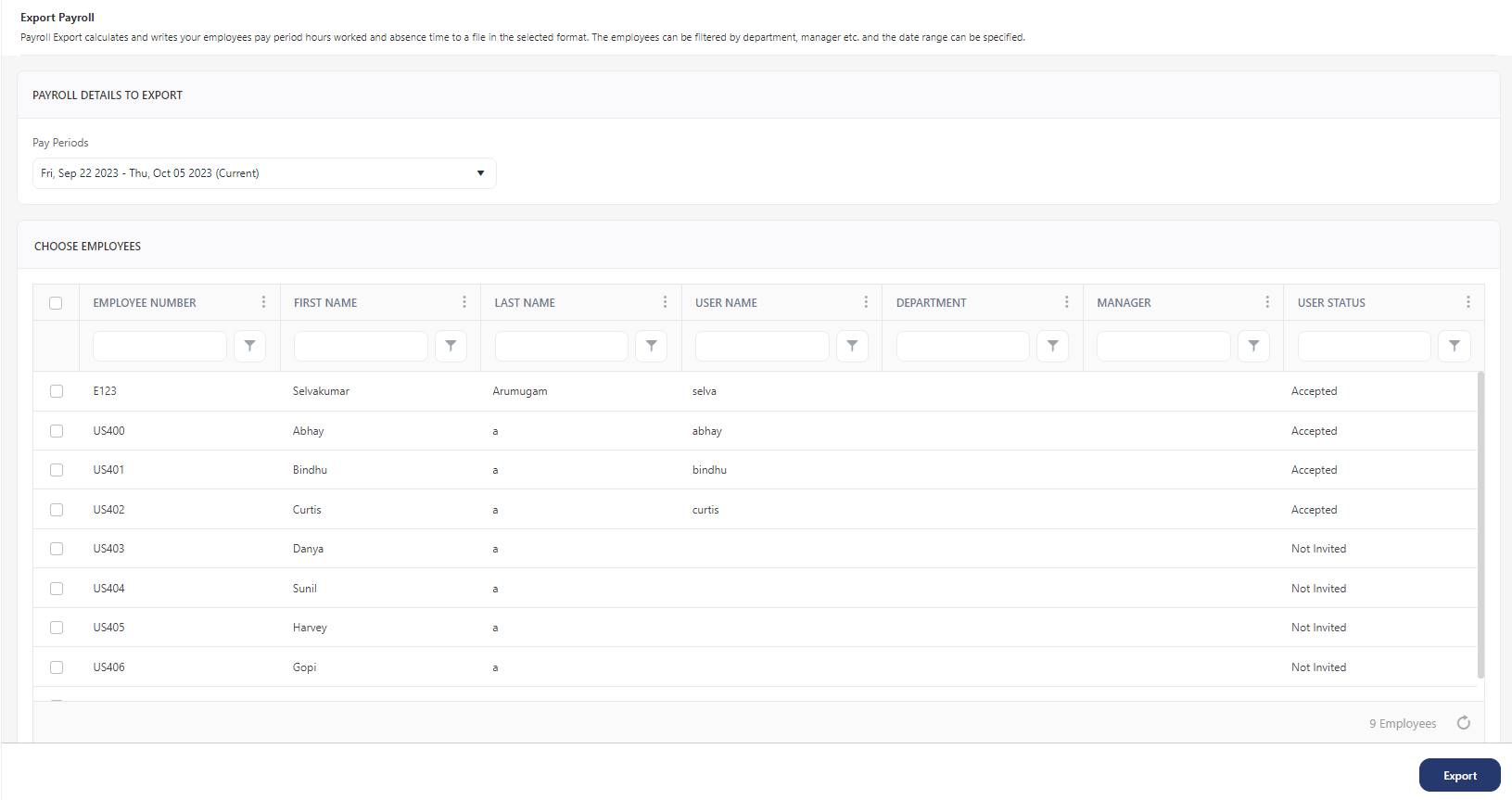
- Choose Employees - Select an employee or the list of employees.
- You can filter the list of employees. A Filter/Sorting Applied text will appear. Hover over the text to view the filter/sorting applied on the list.
- Click Export.
- Based on the payroll export type set on the Payroll Export, a file will get downloaded with all the details.
Note: In the Payroll Rules screen, the pay codes for regular hours, overtime 1, and overtime 2 are added along with configuring the corresponding overtime rules.
- A message will appear indicating that the payroll export is completed successfully.
