Capture Punch Geo Location - Mobile
Capture Punch Geo Location - Mobile is a setting in the application that allows the recording of the geographical location when a punch occurs via mobile application. When activated, the Capture Punch Geo Location feature monitors the location of each punch. The punch location is accessible through the History tab on the timecard screen. Specifically for web usage, there is a different setting for capturing punch geo location. Additionally, there is an option to make this configuration either mandatory or optional.
- Click on the gear “
 ” icon on the top right corner of the application.
- Click Settings.
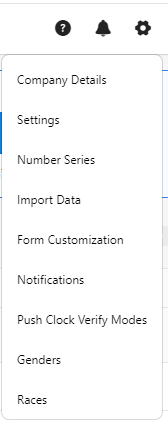
- Click on Geo Location - Capture Punch Geo Location - Mobile.

- The Capture Punch Geo Location settings control capturing the geo location information at the time the punch is performed. Select one of the options:
- Required will always capture the geo location
- Optional will give the user punching the option, and
- Off will never capture the information.
- Click Save.
- Example - To verify, consider that the capture punch geo location is set to "Required". Access the mobile application. Try to Clock In. A popup message will appear with the message "Allow PreciseTime to access this device's location? - While Using the app, Only this time, or Don't allow".
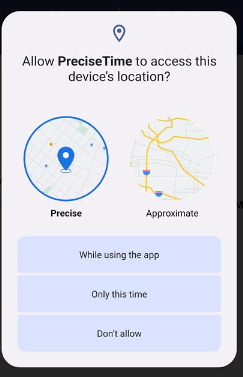
When the "Capture punch geo location" setting is configured as "Required" :
- While Using the app: Choosing this option will not prompt for location access again during subsequent app sessions; it allows continuous access while the app is in use.
- Only this time: Selecting this option permits clocking in or out for the current session but will prompt for location access again upon the next app access.
- Don't Allow: If the user selects "Don't Allow," it will prevent them from clocking in entirely, and the system will continuously display prompts until location access is granted.
Refer to the topic Location Access (mobile) for more details.
