Races
The screen allows you to add, edit and delete race.
View Races
Add Race
Edit Race
Delete Race
Export
Filter
Note: You should have race permissions to allow access, add, edit, and delete. Refer to permission for more details.
View Races
- Click on the gear “
 ” icon on the top right corner of the application.
- Click Races.
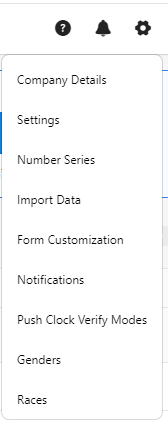
The view screen has the following functionalities:
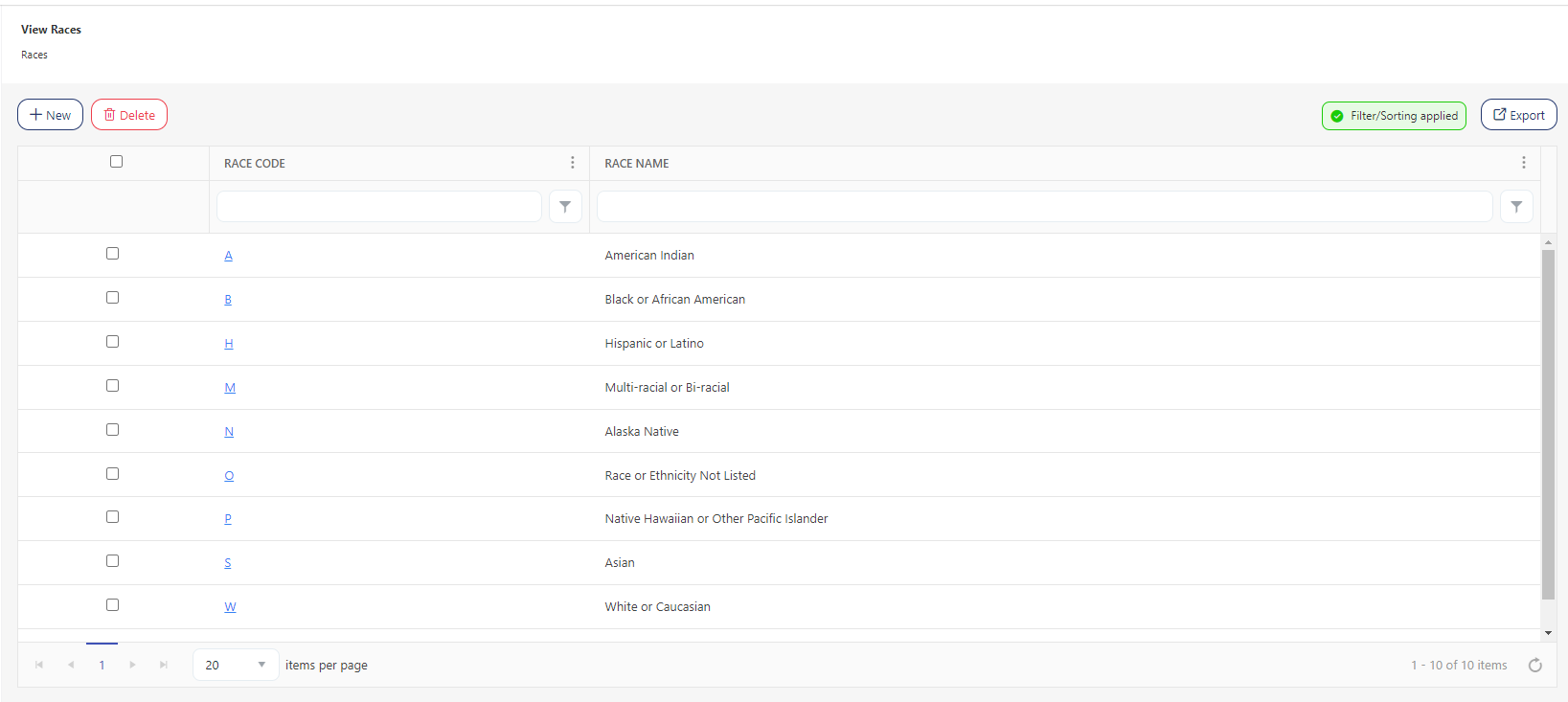
- New and Delete button - Allows you to add and delete races.
- Edit - The race code is a hyperlink that will navigate to the View/Edit Race screen.
- Export - You can also export the list.
- Filter/ Sorting Applied - It displays the filter text and the column where sorting is applied.
Add Race
- Click on the gear “” icon on the top right corner of the application.
- Click Races.
- Click New.

- Add the following details on the New Race screen:
- Enter the race code (required).
- Enter the race name (required).

- Click Save. To cancel the changes, click Cancel.
- Save and add another - if you want to add more, check this checkbox before saving. The New screen appears on saving.

- A success message appears on saving.
Edit Race
- Click on the race code.
The screen navigates to the View/Edit Race screen.

- Edit or update the required fields.

- Click on Save. To cancel the changes, click Cancel.
A success message appears on saving.
Delete Race
- Select the race by checking the checkbox.
- Click Delete.
- Click on the Delete button again on the confirmation message.
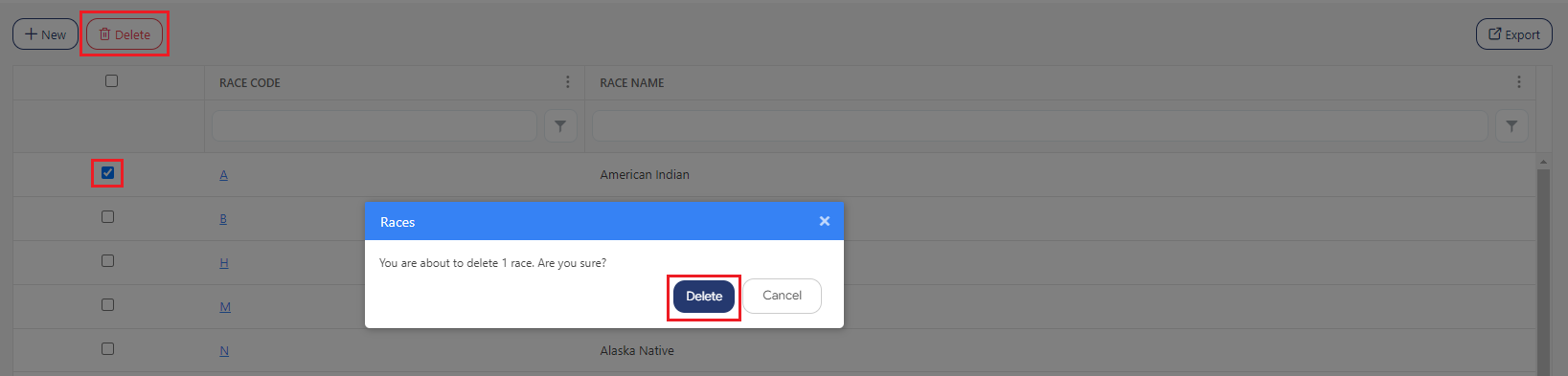
A success message appears on deleting.
Export
Click on the Export button to download the list.

Filter
Each column on the view screen has a sorting and a search option. You will see a search text box in each column where you can type and search. In some cases, the column will only have a sorting option. The search box in each column in an application provides users with a more precise and granular way of filtering data, making it easier to navigate and find the information they need. Enter the text/value that you want to search. You can also enter multiple search terms across different columns. The application will apply all search criteria to filter the data, showing the rows (on the top) that match all the selected criteria.
This approach enables you to filter data based on multiple criteria simultaneously, making it easier to find the specific information you are looking for.
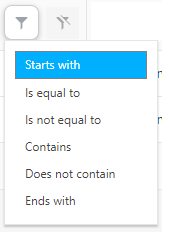
- You can use the filter funnel icon to select - Starts with, Is equal to, Is not equal to, Contains, Does not contain, and Ends with.
- Filter/Sorting Applied - This feature is an indicator in the application to show you that sorting or a filter/set of filters has been applied to a list. This indicator can help users keep track of the filters that are currently in use and understand which items are being displayed because of those filters.

