Registration and Login
The Employee receives a registration link to their work email address once the administrator adds their details and sends them an invitation to access the application.
To complete the registration and to log in to the application, follow the steps below:
- Check your email for a message from PreciseTime containing a link to confirm your registration.
- Click on the link in the email.
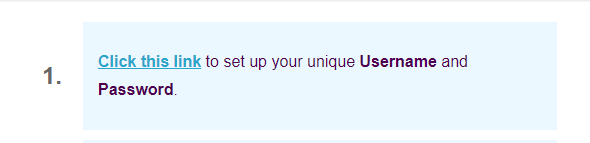
- The link navigates to the registration screen.
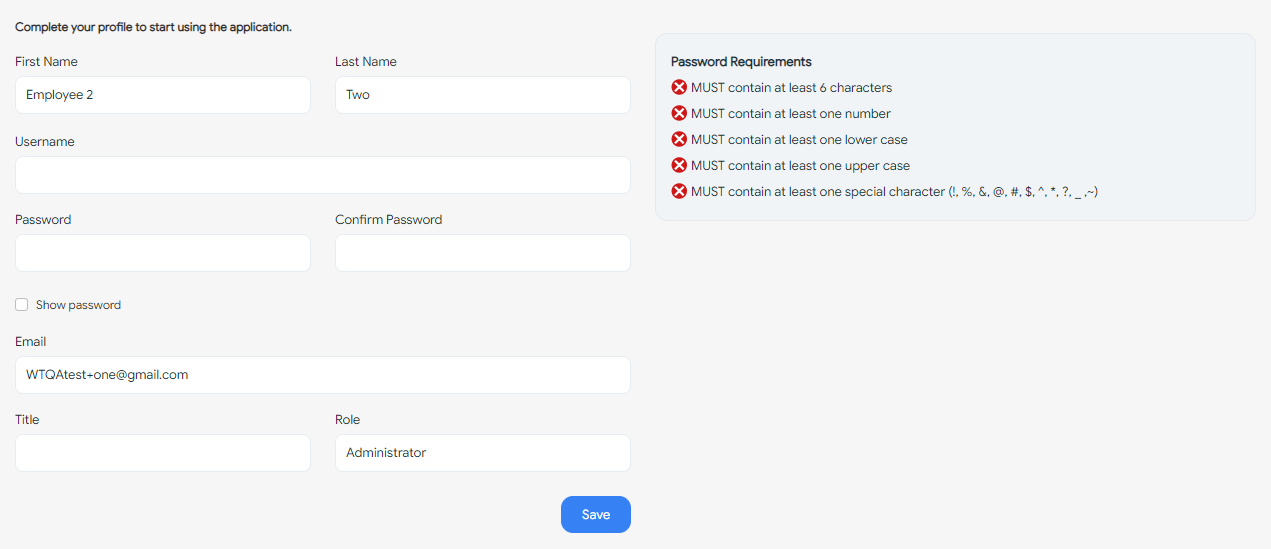
- Complete the registration process. Generally, by adding the following details:
- First Name and Last Name (Required) - Generally, the form will populate the first name and last name. You can update it if you want.
- Username (Required) - Enter the username.
- Password and Confirm Password (Required) - Enter the password in the password and confirm password field. Ensure that the password meets the password requirement criteria.
- Email and Role fields are read-only.
- Title (Optional) - Enter a title.
- Click Save.
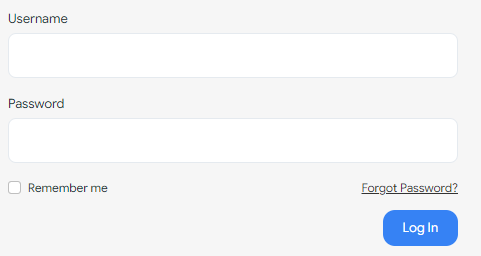
- The screen will navigate to the login page. You can log in to the application by entering your email address and password.
- Username (Required) - Enter the username.
- Password (Required) - Enter the password.
- Remember me checkbox (Optional) - Check the checkbox if you want the application to remember the login information so that you do not have to enter it again the next time you visit. This feature is convenient if you frequently access the website or application.
If you are an employee, you may have to wait for the administrator to invite you to the system, in this case, you will have to follow the instructions in the email you received.
If you have any issues with registration or login, you can contact PreciseTime support for assistance.
