Reset
The screen provides you with an option to reset custom fields, field names, and grid configuration.
- Click on the gear “
 ” icon on the top right corner of the application.
- Click Settings.
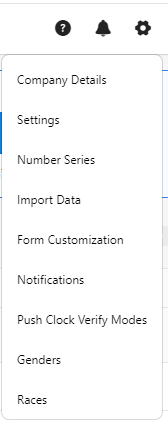
- Click on Reset.
- You can configure the following in the reset settings.
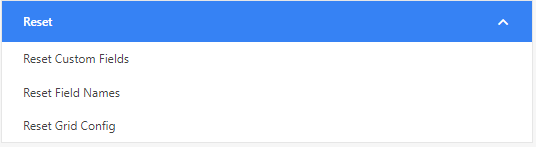
- Reset Custom Fields - This option is dedicated to removing all custom fields, ensuring that only the custom fields you added to the product are affected. Fields that were originally part of the product will remain untouched. Any custom fields you have added will be irreversibly and permanently erased, ensuring they no longer appear anywhere.

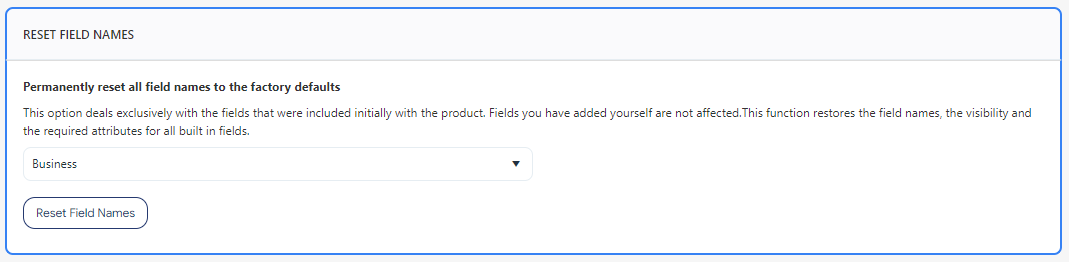
- Reset Field Names - This option results in a permanent reset of all field names back to their factory defaults. It exclusively pertains to the fields that were initially included in the product. Any fields you've added independently remain unaffected. This function restores the field names, visibility settings, and required attributes to their original values for all built-in fields.
- Reset Grid Config - This option helps you reset grid configurations to their default settings if they get corrupted. Select the grid configuration and click on the Reset Grid Config button.

- Click Save.
