View & Approve Timecards
The View Timecards screen on the View and Approve Timecards lists subordinates reporting to you. It will display their names, employee number, timecard status, and hours. Any discrepancies in the total hour will be shown in red color with a  symbol. You can also approve timecards with no discrepancies from the view screen itself.
View Timecards
View Selected Timecards
View This List As
Bulk Approval
Timecard Details Screen - Manage & Approve Your Team's Timecards
Note - Refer to permissions to view timecard-related permissions.
View Timecards
Click on View & Approve Timecard below Timecards.
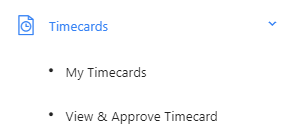
The view & approve timecards screen will list all the employees reporting to you.
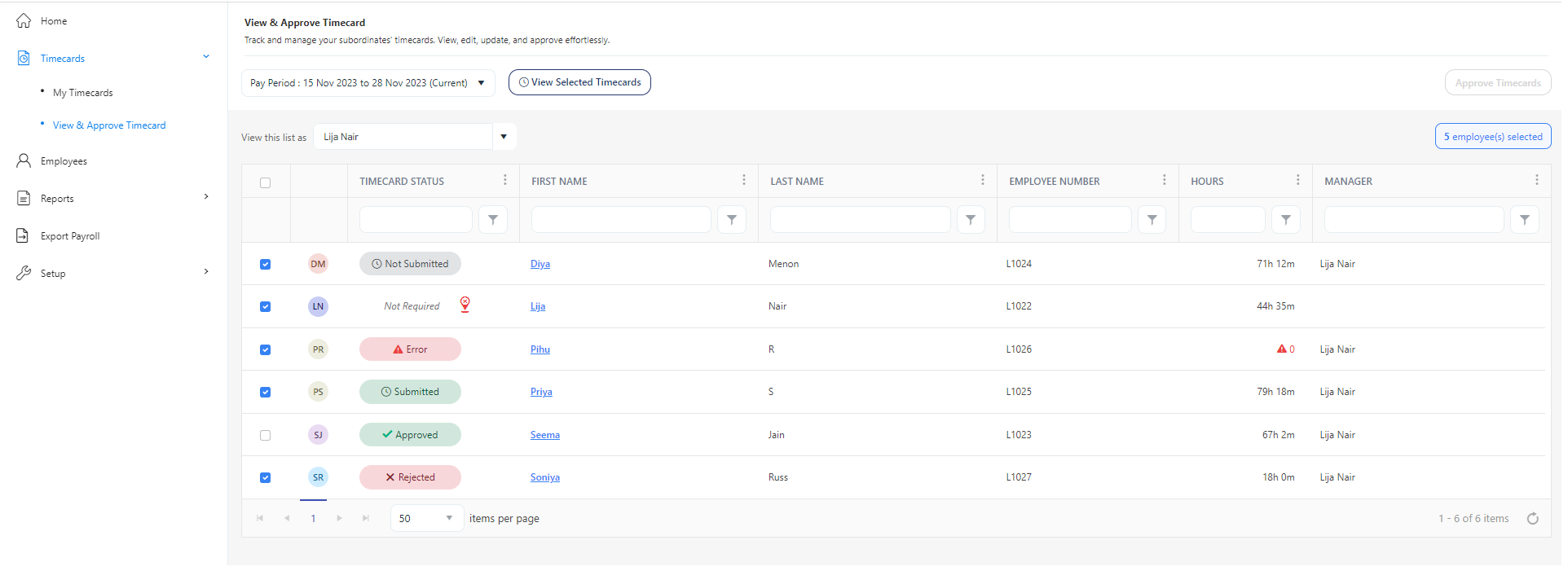
The View Screen has the following functionalities:
- Checkboxes - By default, the employee who can be approved will be selected.
- Pay Period - The options are the previous pay period, current pay period, and next pay period. The current pay period is the default. The dates will get displayed next to the pay period field.
- Timecard Status - Display the timecard's status.
- Not Submitted - This status indicates that the timecard is prepared for submission, but the employee hasn't submitted it yet.
- Not Required - When the employee does not have a reporting manager and therefore a manager's approval is not required. In this case, the employee will not have the manager approval checkbox checked on the New/Edit Employee screen.
- Error - In case of a discrepancy on the employee's timecard (i.e., missed punch or no punches), it cannot be approved. On mouse hover, it will display the errors.

- Submitted - This status indicates that the timecard has already been submitted for approval.
- Approved - This status confirms that the timecard has already been approved.
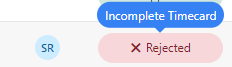
- Rejected - This status appears when a manager rejects a timecard. On hover, it will display the notes added by the manager.
- Last Name, First Name - Display the employee's name. The first name is a link that will navigate to the timecard details screen.
- Employee Number - Display the employee number.
- Hours - Display the total hours worked on the selected pay period. The discrepancies in total hours will be shown in red color with a symbol. Note that the total hours will also include paid absence hours.
- Department, Title, Status - Display the employee's department, title, and status (active, inactive, or leave).
- Filter - Beneath the heading of each column within the table, you'll find a text box that allows you to search for text or values exclusively within that particular column. This filtering option is consistently accessible. Upon completing a search, a label stating "filter sorting applied" will become visible.
- View Selected Timecards - This allows you to view the timecards of all the selected employees on the View Timecards screen. The count of selected employees will appear above the table.
- Approve Timecards - This provides a provision to bulk approve the employee timecards.
- View this list as - It is a feature to view the list of employees from another manager's perspective. It also provides a "show all" option to view all the employees. This feature is tied to certain permissions and therefore logged-in employee must have those permissions to make use of this feature.
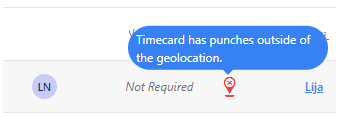
- Geofence - The geofence (
 ) icon will be shown next to the "timecard status column" for the employees who have punches recorded outside the designated geofence area. The Geofence feature records the punch location and notifies the user by displaying an icon and a hover message on the timecard, indicating that the punch occurred outside the designated area. You can view the details on the View Timecard screen.
Bulk Approval from View Screen
The Approve Timecard button on the View & Approve timecards screen allows you to approve the timecards of all or the selected employees.
For bulk approval, the timecards of the selected employee should meet the following criteria:
- The timecards should have at least one pair of punch entries.
- There should not be any missed punches.
- The "Manager approval" checkbox must be checked for all the selected employees.
Note: Employees with invalid punches, lacking a reporting manager, or having zero time entries for the pay period are ineligible for approval.
For Bulk approval:
- By default, the Approve Timecards button will be disabled.
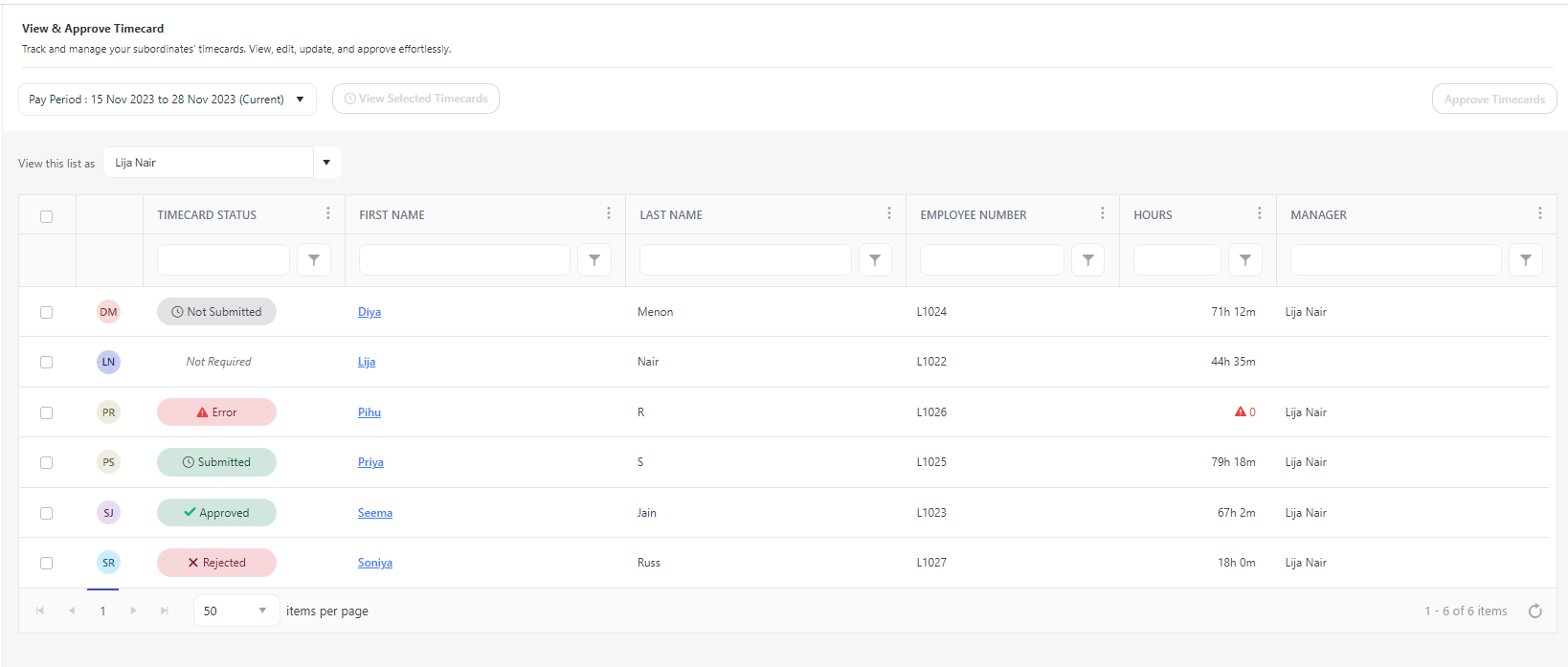
- Assuming that the timecards are fixed, and the selected timecards meet all the criteria required for bulk approval.
- Select the employees. The count of selected employees will appear above the table.
- You notice that the Approve Timecard button will be enabled.
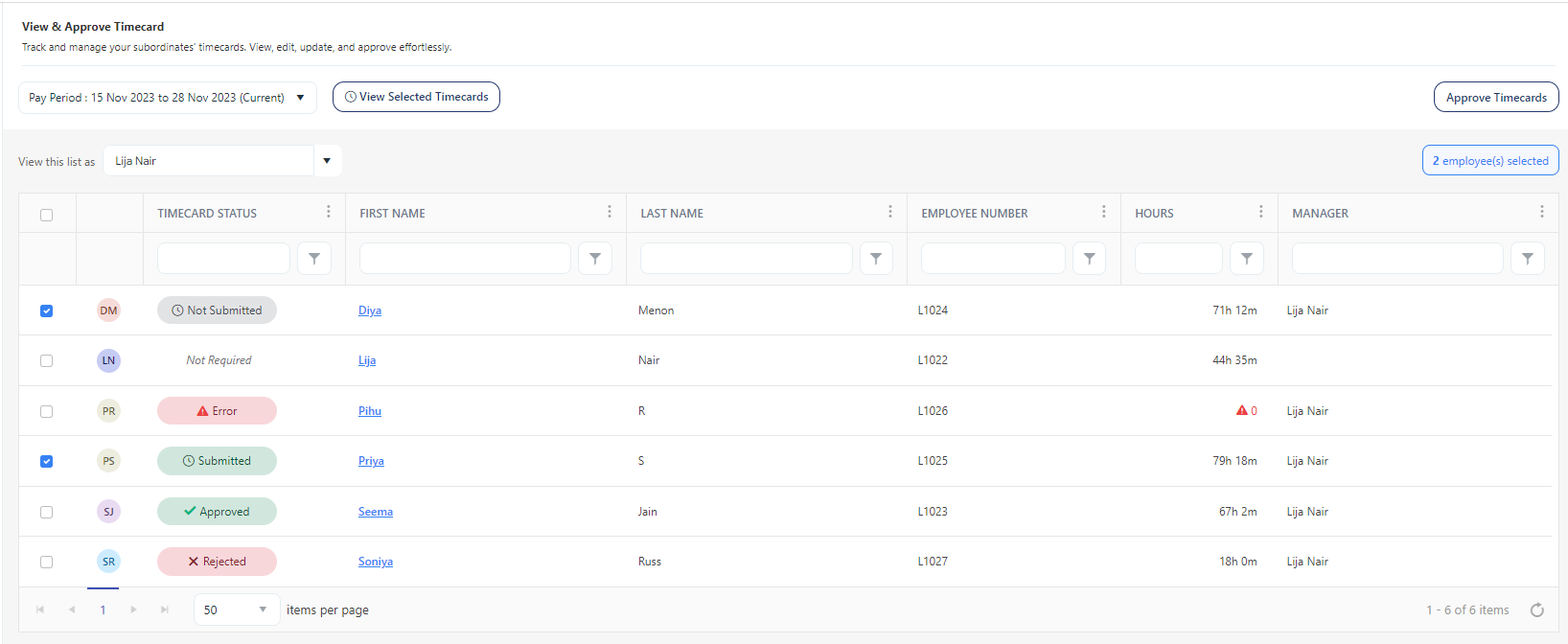
Note: If you select an employee who does not meet even one of the criteria, then the Approve Timecards button will be disabled.
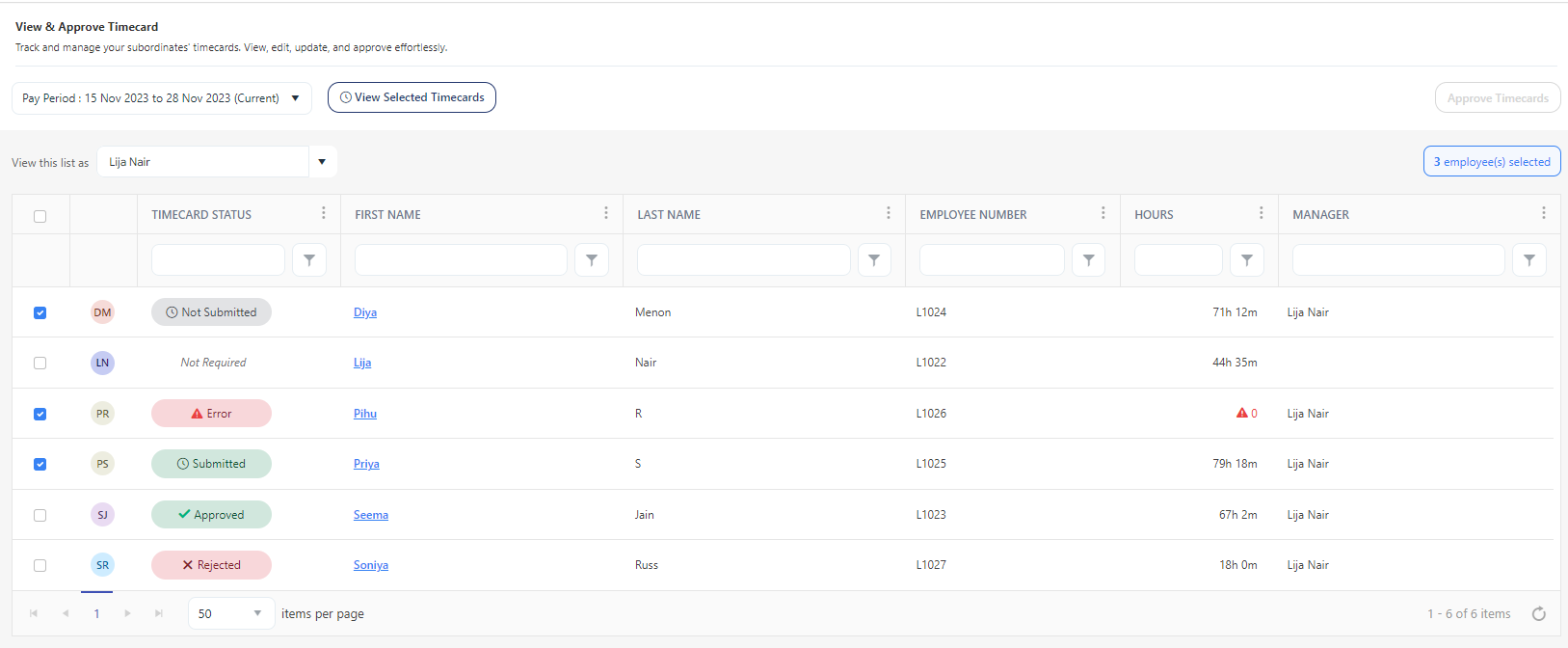
- Click on the Approve Timecards button. The status of the selected employee will change to "Approved".

View Selected Timecards
View Selected Timecards allows you to view the timecards of all the selected employees on the View Timecards screen.
- To use this feature, select the employees by checking the checkboxes. The count of selected employees will appear above the table.
- Click on the View Selected Timecards button.
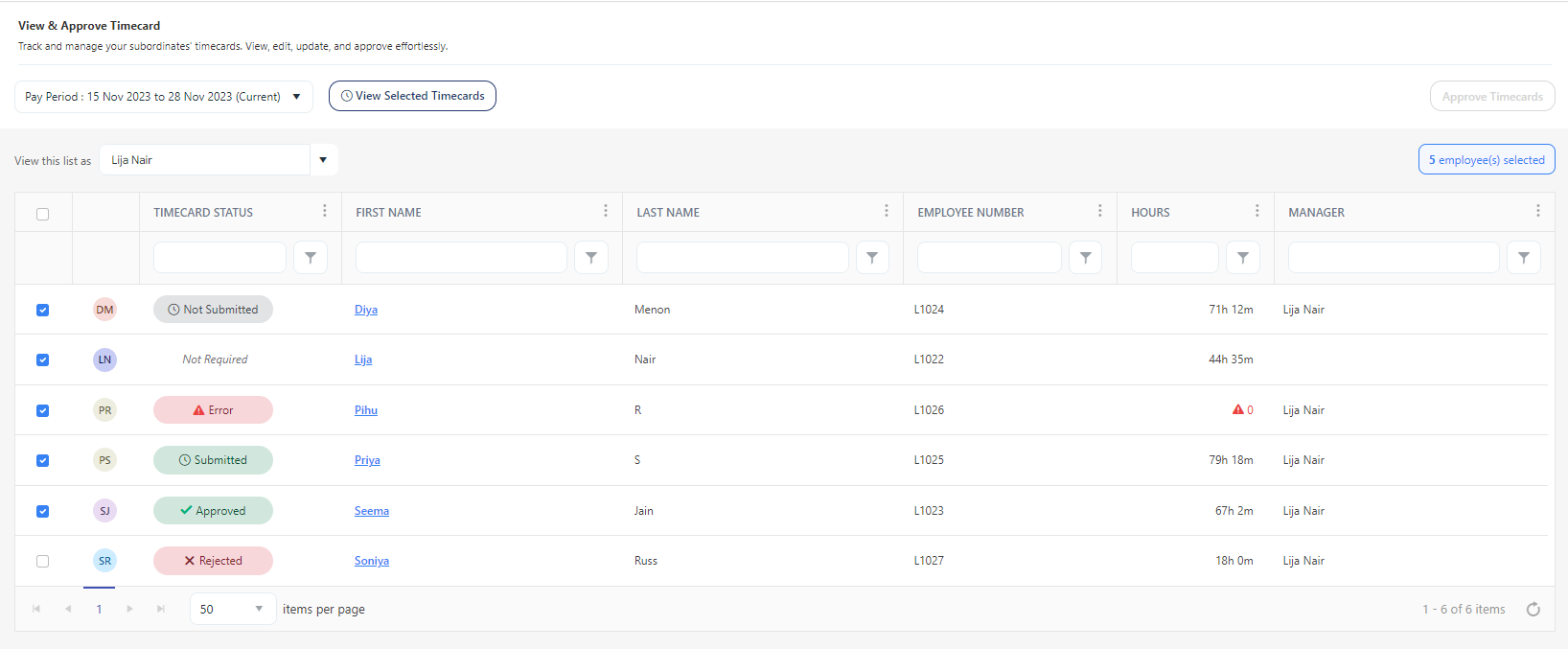
- On the detailed timecard view screen, there will be a dropdown field on the top-right-hand side of the screen. The dropdown will list the selected employees.
- Use the dropdown option to select an employee.
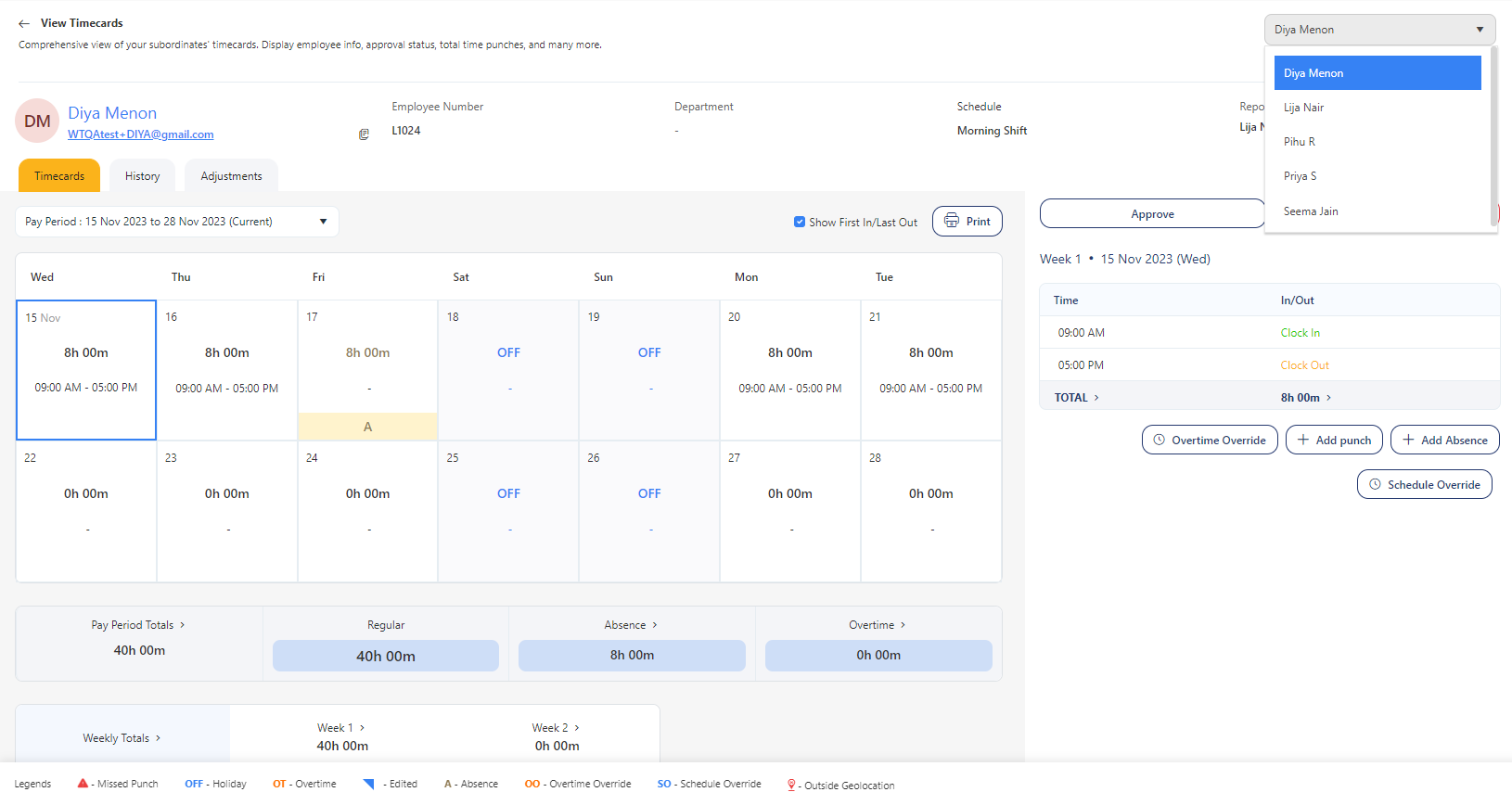
- View, Fix, and Approve the timecards.
View This List As
The "View this list as" is a search field on the View & Approve Timecard screen. By default, it will display the logged-in employee's name.
The dropdown will also allow you to view another manager's subordinates falling in the same hierarchy. For this "View this list as" search field depends on the "View Employee List From" field settings on the New/Edit Employee screen. To approve timecards of another manager's subordinates, the "View Employee List From" field should be set accordingly.
- A manager can view and approve the timecards of anyone below them.
- The manager can view and approve another manager's subordinates. The only condition is both managers should be in the same hierarchy. In order to view the subordinates of another manager, the "View this list as" depends on the "View Employee List From" field on the New/Edit Employee screen.
Example:
- Consider the following hierarchy:
- Antony (CEO) is an employee with no manager.
- Billy (manager) and Cera (manager) report to Antony.
- Hema reports to Billy (manager). Dana and Emily report to Cera (manager).
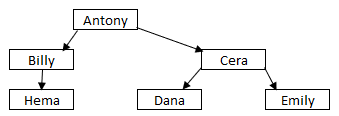
- Assume that Antony is logged in. By default, the "View this List as" will show "Antony".
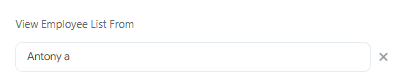
- Consider that Billy is on leave and Antony is assigned to approve Hema's timecard.
- To view Hema on the listing screen, click on the "x" icon and select "Show All" as the timecard will list all the employees reporting to Antony.
- Antony will view Hema on the View & Approve timecard list and will be able to approve Hema's timecard.
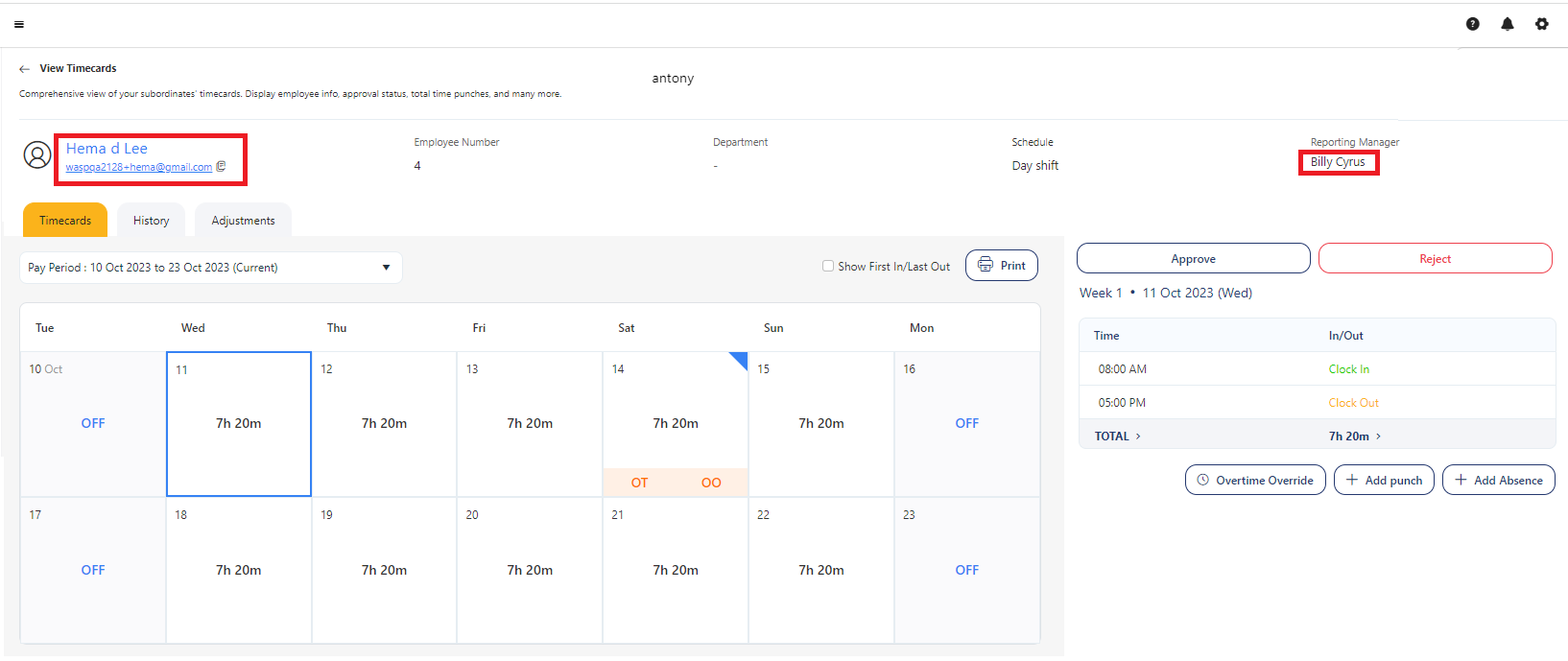
Note: To view all employees, the View All Employees permission is required.
