View this list as
The "View this list as" on the View Employee screen allows you to view the subordinates of another manager within the same hierarchy.
Default values are
- If the logged-in employee is a manager, then the "view this list as" will display the logged-in employee's name.
- If the logged-in employee is not a manager, then "show all" will be selected.
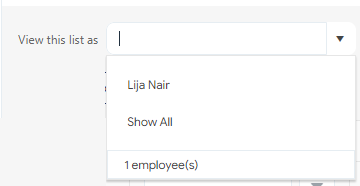
Note: The dropdown will list only managers. It's important to ensure that all employees are assigned a manager.
To view the subordinates of another manager, the field depends on the "View Employee List From" field on the New/Edit Employee screen. Refer to Setting View Employee List From topic.
The View Employee screen can also list all the employees (including employees who have & do not have managers) and their subordinates, and then all the way down that hierarchy. To view such employees, the logged employee should have View All Employees permission. Refer to Viewing All Employees topic.
Setting View Employee List From
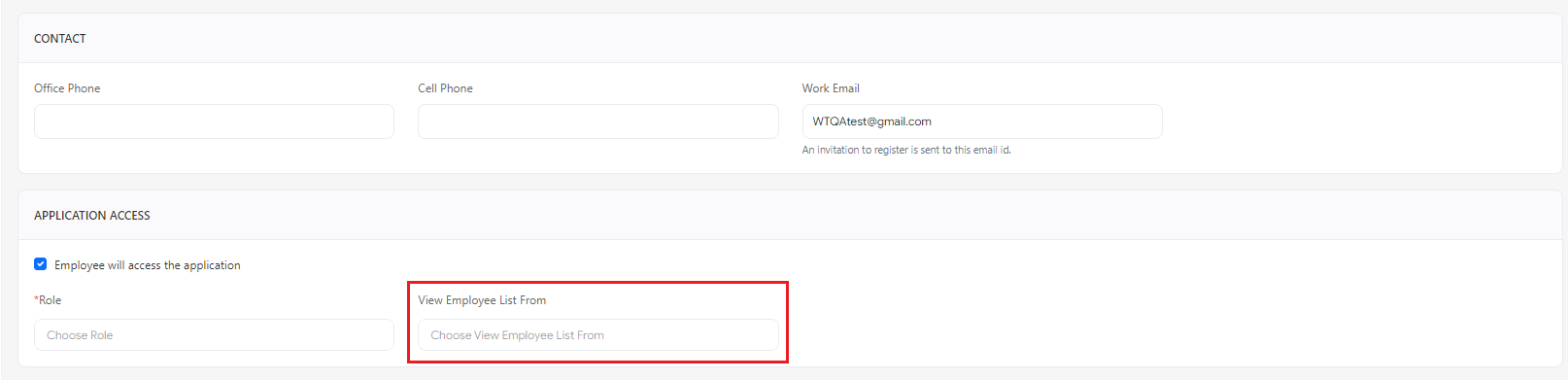
The View Employee List From is a field that appears on the New and the Edit Employee screen. It is an optional field that is only visible to users who possess the Employee - View Tree from Employee permission. This permission allows users to configure an employee to view the employee hierarchy from the perspective of another employee.
You have the option to set this value while adding a new employee for sending an invitation, or when editing the employee details. The "View Employee List From" fields becomes visible once the "Employee will access the application" checkbox is enabled.
Note: To see the "View Employee List From" field, users must have "Allow Access" permission to view it, and to make edits, they should have "Edit Access" permission.
Viewing All Employees
The employees who do not have a manager will be displayed on the View Employee grid regardless of the selection made in the "View this list as" dropdown. The only requirement is that the logged-in employee should have "Allow" access to View All Employees permission. The features of "View All Employees" permission are:
- Meant for Admin/HR role.
- They will see all the employees (who have & do not have managers) on the View Employee screen. Note that they can see everyone who reports to these employees and then all the way down that hierarchy.
- An employee with a role that has the View All Employees permission can also view all employees. Note - An employee that has the Application Administrator attribute turned on can also view all employees.
- The "View list as" control will behave identically everywhere. It would always default to the employee who is logged in. (Assuming the logged-in employee is a manager, and no one is selected on the “View Employee List From” field).
An Example On View this list as & View Employee List From
The following example explains how "View this list as" and "View Employee List From" work together.
- A user record is created. On creation, an invitation is sent to their email address. This user registers and accesses the application. The registration creates an employee record for that user. That first user will see their record on the employee list.
- The logged-in user should import the employee list and send bulk invitations. Or they should manually enter the employee details and send invitations one by one.
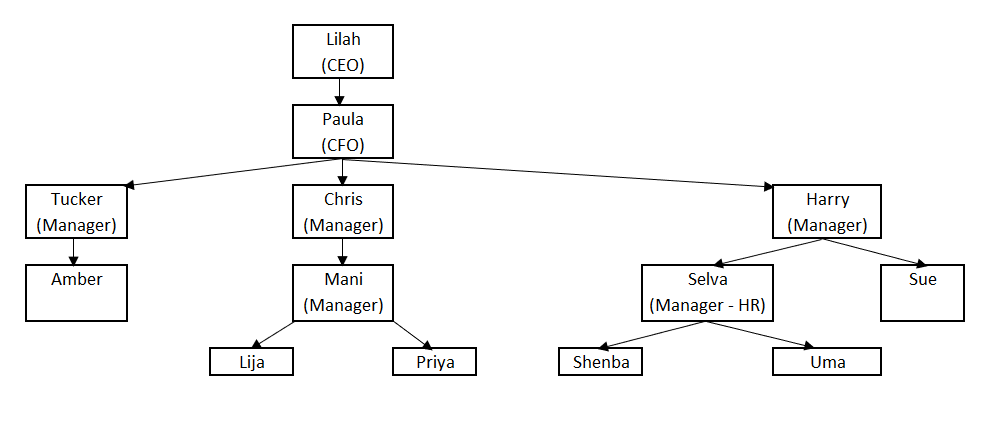
- Consider the following Hierarchy:
- Lilah, the CEO, has logged in and is adding employees.
- Paula, the CFO reporting to Lilah.
- Tucker, Chris, and Harry - All Managers are reporting To Paula.
- Amber - Reporting to Tucker.
- Mani - Manager Level 2 reporting to Chris.
- Selva (Manager-HR) and Sue are reporting to Harry.
- Lija and Priya are reporting to Mani.
- Shenba and Uma are reporting to Selva.
- Also, assume that all the employees added have "Allow" access to "View All Employees" permission. All the employees will see Lilah, the CEO on the View Employee screen, as Lilah has no manager assignment.
Lilah (CEO) is logged in,
- The “View this list as” will show Lilah.
- Lilah and Paula will be on the View Employee screen.
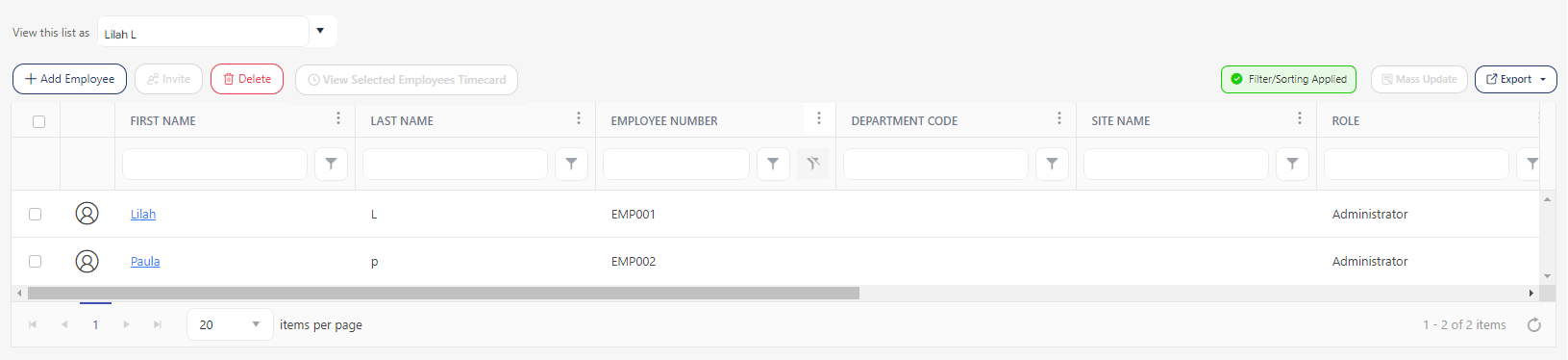
- The “View this list as” will allow you to search for the following names: Lilah (CEO) (default), Paula (CFO), Tucker, Chris, Harry, Mani, Selva (HR), and Show All. It will not show the other employees in the hierarchy as they do not have any subordinates.
- If Harry is selected, the grid updates to show Harry, Sue, and Selva (HR).
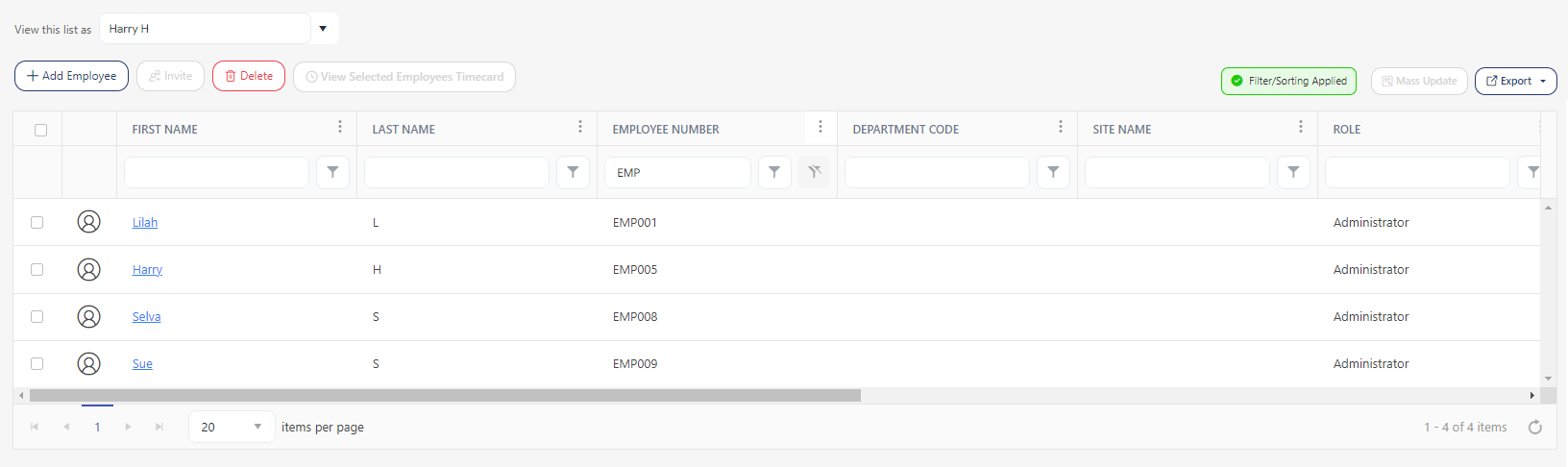
- Since Lilah is at the top of the tree, there is no need to have a “View Employee List From” value set.
Chris is Logged in,
- The “View this list as” will show Chris.
- Chris and Mani will be on the View Employee screen.
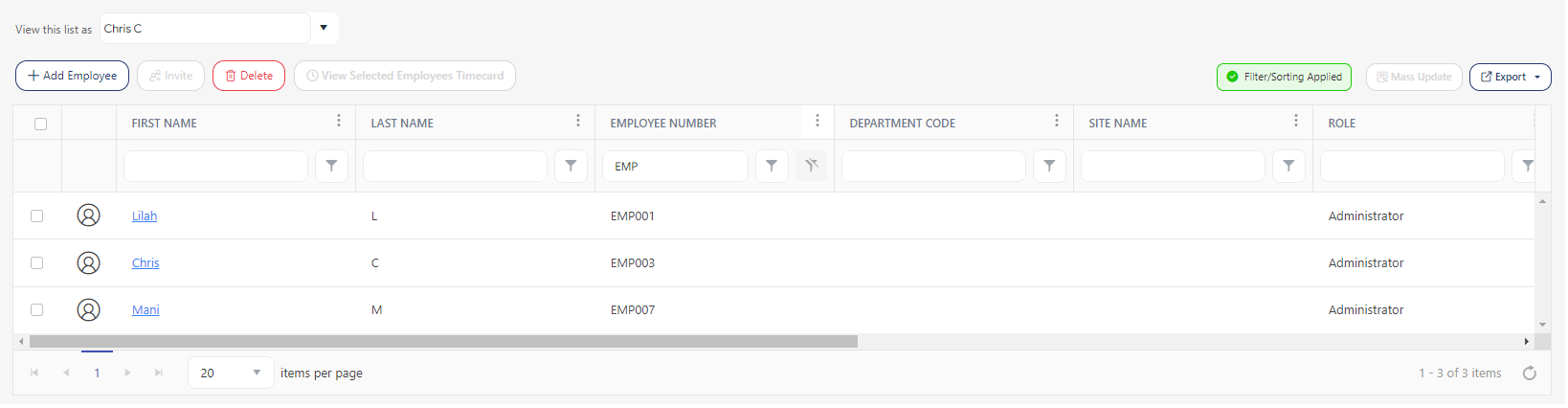
- If Chris then chooses Mani from the “View this list as”, the grid updates to show Mani, Lija, and Priya.
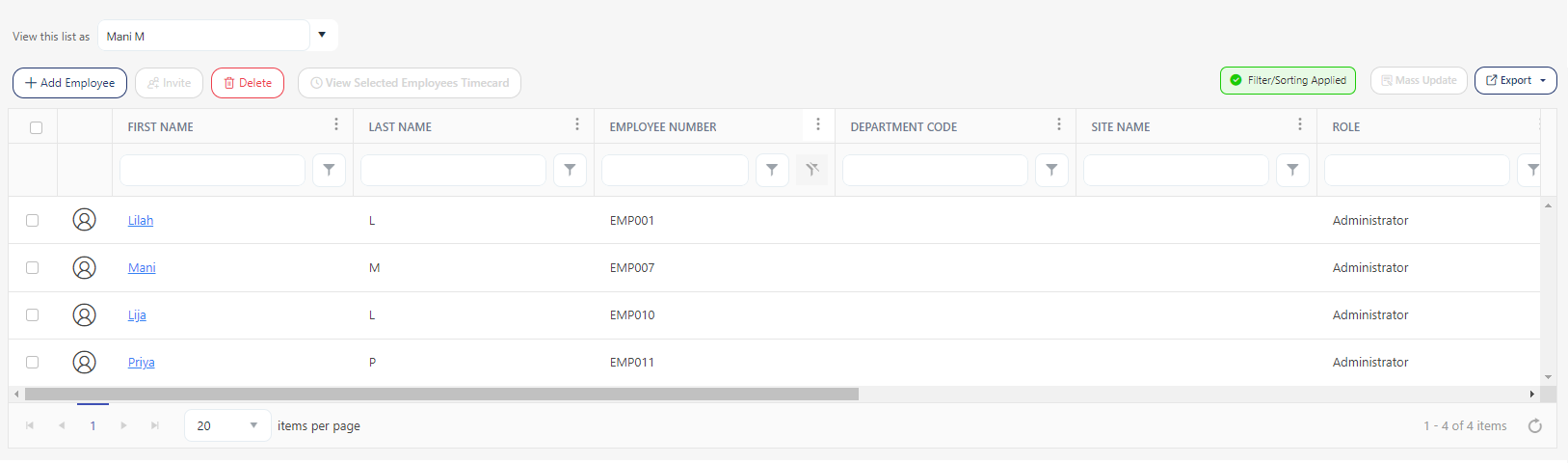
- Since Chris is a manager with no HR or payroll responsibilities, there is no need to have a “View Employee List From” value set.
Selva (HR) has logged in,
- The “View this list as” will show Selva.
- Selva, Shenba, and Uma will be on the View Employee screen.
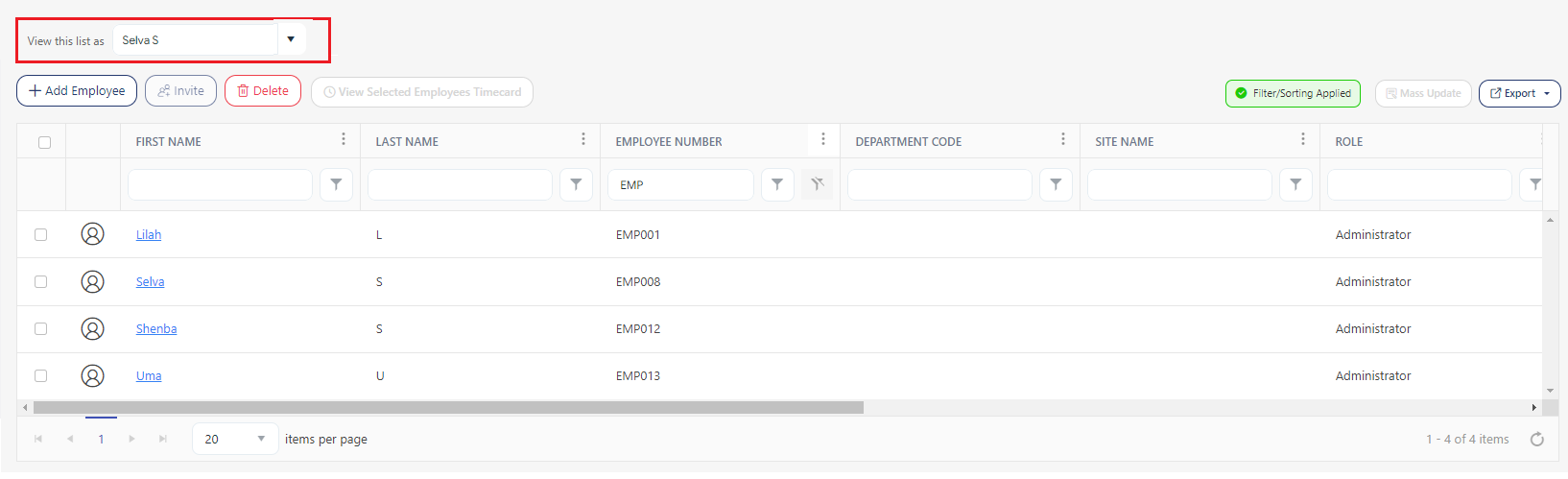
- Since Selva (HR) is a manager with HR or payroll responsibilities, there is a need to have a “View Employee List From” value set.
Selva (HR) has logged in, consider that the “View Employee List From” is set to Lilah (CEO)

- Default will set the “View this list as” to Lilah. You can search for Lilah, Paula, her subordinates, and soon. The View Employee grid will list the “View Employee List From” Lilah and her direct report, Paula (CFO)

Selva (HR) has logged in, consider that the “View Employee List From” is set to Harry (Manager)

- Default will set the “View this list as” to Harry. You can search for Harry and Selva. Sue will not be listed as there are no subordinates. The grid will list the “View Employee List From” Harry, and his direct reports - Selva (HR) and Sue.
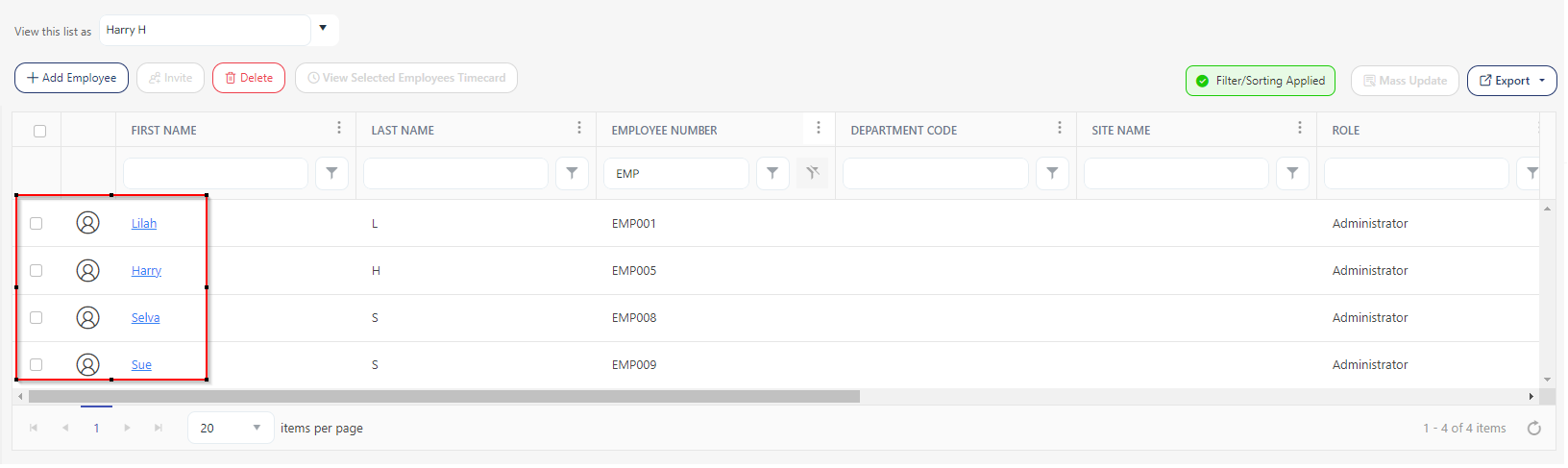
Therefore, the "View Employee List From" field needs to be set for any user who wants to view the employee list outside of their usual hierarchy or tree structure. When this field is configured, the user will see the employee list as if they have logged in as the employee specified in the "View this list as" value.
It's important to note that even though the user is viewing the employee list from another employee's perspective, their roles, and permissions remain the same as those of the logged-on user. In other words, the user's access rights and privileges are not affected by the "View Employee List From" setting.
Furthermore, it is not necessary for the employee to be a manager in order to have the "View Employee List From" value set. This functionality allows employees at various levels within the organization to view the employee list from different perspectives based on their specific requirements.
