Home
The Home screen provides essential information about your logged hours, and team members' availability, and offers convenient options for clocking in and out. It aims to offer a centralized and user-friendly interface for managing time-related tasks and monitoring your team.
To access the home screen, click on the Home menu or on the Logo.
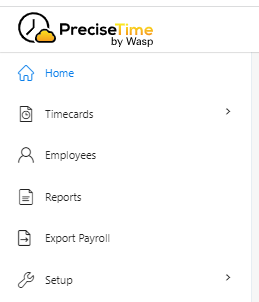
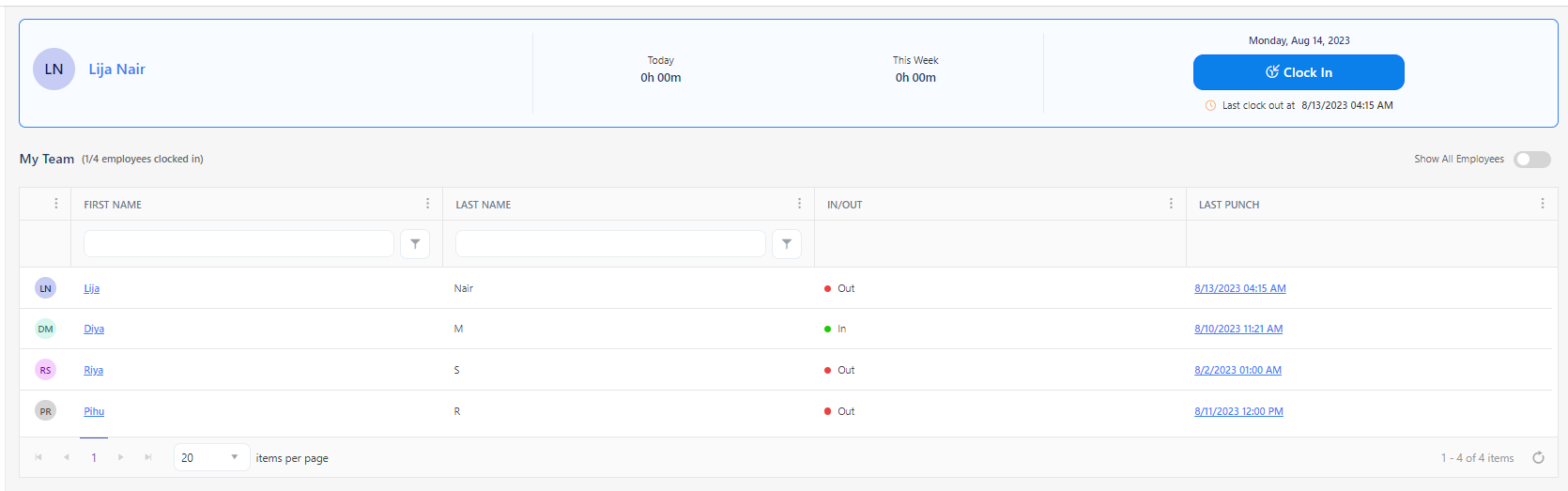
The home screen displays the following information and has the following functionalities:
- Total Hours Today and This Week - It will display the total number of hours you have logged for the current day and week. This information provides a quick summary of your time management and productivity.
- My Team - This section is dedicated to displaying information about your team. This includes the count of employees clocked in, names, profile pictures, last punch, and in/out status of your team members, allowing you to see who is currently working or available.
- Show All Employees - The toggle serves the purpose of displaying the entire roster of organization employees. It is set to off by default, and when in this deactivated state, it will list the employees who report to the currently logged-in user. To access this toggle, the user needs to either have the role of an application administrator or require View All employees permission.
- Access to View All employees permission will list all the employees (who have and do not have managers) and their subordinates.
Note: An employee holding the Administrator role will have the authority to view all the employees in the organization and will have access to all application features and functionalities.
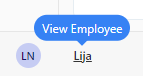
- The First Name is a link that will navigate to the selected employee's View/Edit Employee screen. The hyperlink will work only if the employee has "view employee" permissions.
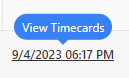
- Last Punch is a link that will navigate to the selected employee's View Timecards screen. The hyperlink will work only if the employee has "view timecards" permissions.
- Clock In and Clock Out - The home screen also has the option to clock in and out. The button toggles between Clock In and Clock Out. Click on the button when you clock in or clock out. It will display the "Last Clock in/out date and time". This functionality enables you to accurately track your working hours.
Note:
- If an employee does not have a schedule template assigned to them, the clock in/out button on the Home screen will be hidden.
- Similarly, the Pay Period Settings and the regular paycode in the Payroll Rules are mandatory to use the web clock in/out feature.

- After punching in on a clock, it can take up to 5 minutes for the punch to register on the web. Therefore, if PreciseTime notifies you to clock in immediately after using the clock, it's best to wait for 5 minutes and then refresh the webpage. There's no need to clock in a second time. Remember to review your timecard at the end of each pay period to ensure accuracy.
- The Clock In/Clock Out button will be shown only for the employee who has web punch permission.
- The employee's punch geo location will be captured only if the "Capture punch geo location" setting is enabled, and the employee has granted location access. Refer to the topic Capture Punch Geo Location - Web for more details.
Note:
- Upon granting permission to add location data to each punch, the address bar of the browser will display the geolocation icon. Conversely, when disabled, it will either hide or show a geolocation icon with a line over it (
 ) indicating denied location access. The screenshot below illustrates how Google Chrome displays the geolocation icon and indicates where location access is provided. Depending on your browser, we recommend referring to or searching for steps on how to grant permission to add location data.

- Filter - Beneath the heading of each column within the table, you'll find a text box that allows you to search for text or values exclusively within that particular column. This filtering option is consistently accessible. Upon completing a search, a label stating "filter sorting applied" will become visible.
- Filter/ Sorting Applied - It displays the filter text and the column where sorting is applied.